 Rocket Safari
How to Use Canva Templates to Make Instagram Stories
Stories are where a lot of Instagram’s day-to-day attention lives, and they vanish in 24 hours, so you need a steady supply of them. The catch is that good design takes time you probably do not have. That is exactly the gap Canva templates fill: pick one, swap in your content, and you have an on-brand Story in minutes.
Canva is home to thousands of professionally designed templates you can customise to match your look, so you are never staring at a blank canvas. This guide walks you through making one from scratch, from the right dimensions to the export settings.
How to use Canva templates to design Instagram Stories
Canva has a free app for phones and tablets, plus a browser version if you would rather work on a bigger screen. Everything below works the same either way.
1. Open the Canva app or website
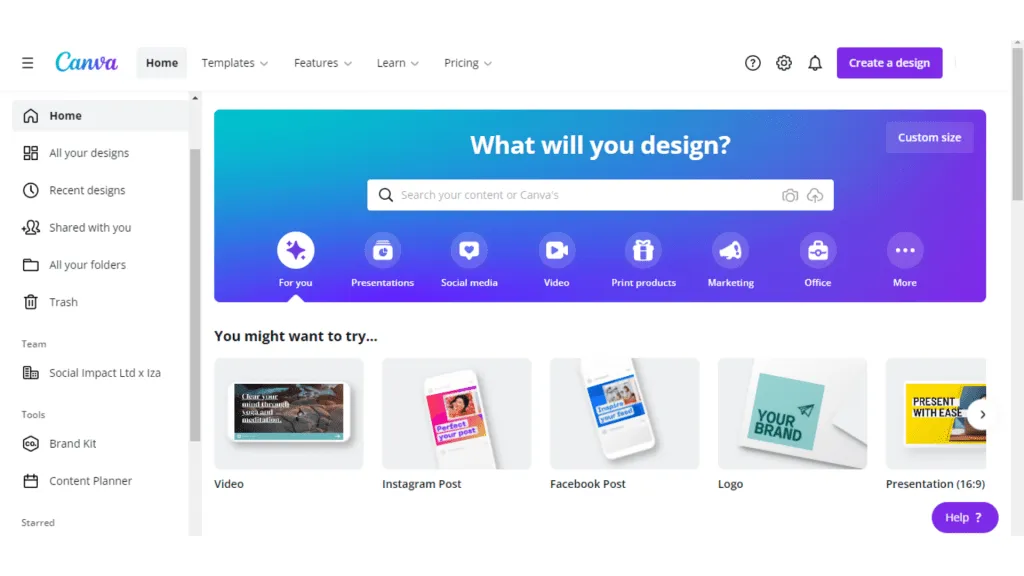
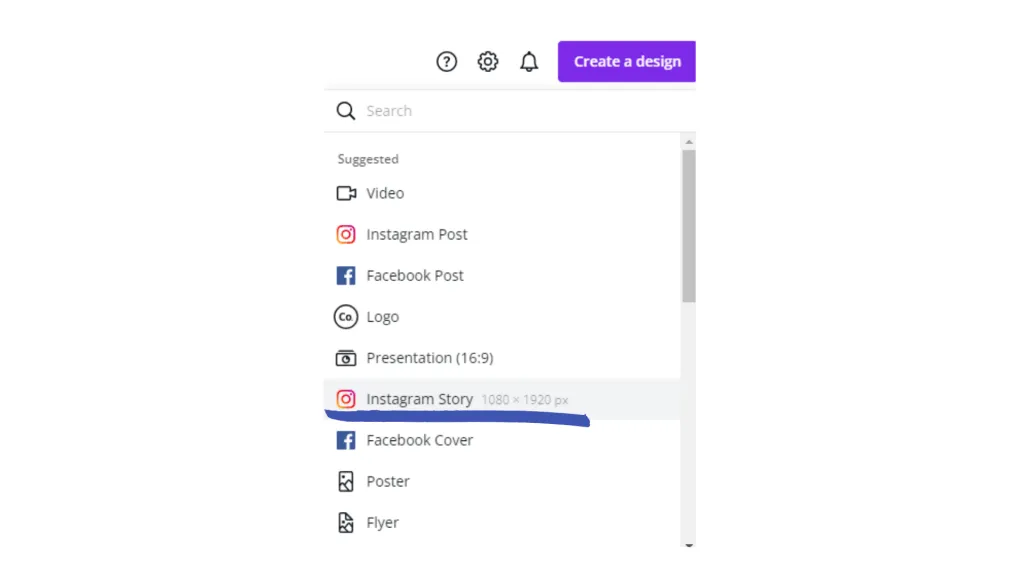
2. Search for an Instagram Story template, or set custom dimensions. Type “Instagram Story” into the search bar and Canva loads templates already sized for you. If you want to start from a blank canvas instead, choose Custom size and enter 1080 pixels wide by 1920 pixels tall, the native dimensions of an Instagram Story. You can also start straight from Canva’s Instagram Story templates page.
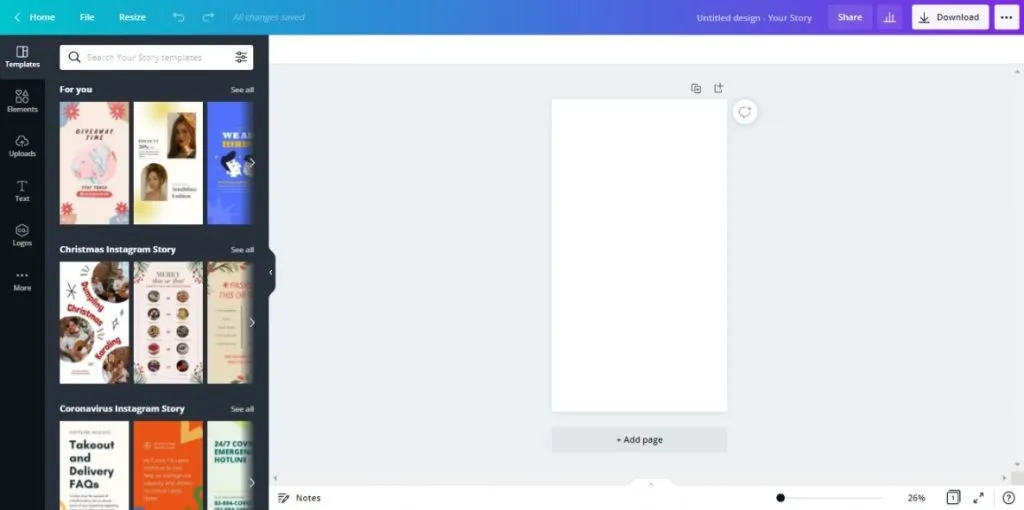
3. Pick a template to customise, or start from scratch. Browse the template panel on the left and filter by keyword (try “minimal”, “sale”, “quote” or your niche) until something fits. Click it to drop it onto your canvas, then make it yours.
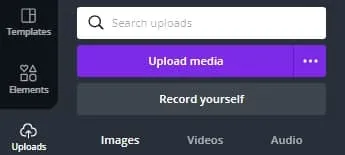
4. Add your own images. Open the Uploads tab to bring in photos from your camera roll or computer, then drag one onto the template to place it. Prefer Canva’s own library? The Elements and Photos tabs hold millions of stock images and illustrations you can search and drop straight in. One thing worth doing early: switch on your Brand Kit (Canva Pro) or save your colour codes somewhere handy, so every Story you make pulls from the same palette and fonts. Consistency is what makes a feed and a Story set feel like one account rather than a scrapbook. Our guide to branding your Instagram covers how to lock that look down.
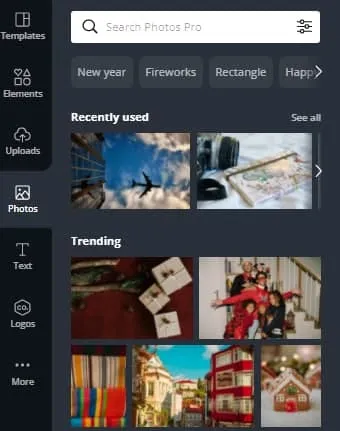
5. Add and arrange your other elements. Layer in text, shapes, frames, lines, icons and stickers from the side panel, then drag to resize and reposition. Keep your key text and any links roughly in the middle third of the canvas: Instagram crops the top and bottom for the profile bar and the reply box, so anything parked at the very edges can get covered or cut off. Leaving that safe zone clear means nothing important disappears once the Story is live. If you are adding interactive stickers later in the app, leave space for them too. Our Instagram stickers guide explains which ones actually drive replies and taps.
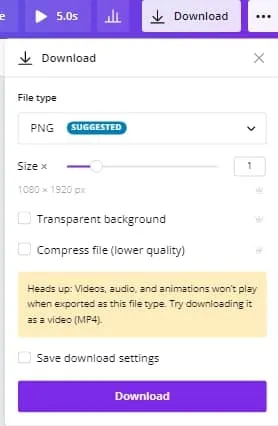
6. Download your Story. When you are happy, hit Share, then Download, and choose your format. For a still Story, PNG gives you the cleanest, sharpest result, while JPG makes a smaller file if you are tight on space. If your design includes video, animation or moving elements, export as MP4 Video instead so it actually plays as a Story rather than freezing on a single frame. Save it to your phone or computer, then upload it to your Story like any other photo or clip.
Best Canva Story template types for creators
Not every template earns its place. A few formats do most of the heavy lifting, so it is worth keeping versions of these saved and ready:
- Promo and sale templates for launches, discount codes and “link in bio” call-outs, where a clear headline and one obvious action matter most.
- Quote and text-led templates for tips, hot takes and quick value, the kind of Story people screenshot and re-share.
- Photo-frame templates that drop your own image into a tidy, branded layout, ideal for behind-the-scenes shots and product photos.
- Question and poll backdrops designed to sit behind Instagram’s interactive stickers, so the sticker has room to breathe.
Short on ideas for what to actually put in them? Our story ideas to entertain your followers is a good place to raid.
Make a small set of these in your colours once, duplicate them whenever you need a new Story, and you cut your design time to almost nothing while keeping everything recognisably yours. Tie that into the rest of your grid and your profile starts to feel intentional, which is half the battle. If you want your whole grid to feel this coherent, here is how to create a killer Instagram feed to match your Stories.
Open Canva, pick a template, and post your first one today. The more on-brand Stories you ship, the more recognisable you become, and the less time each one takes.